
This article is minimal guide about how to set up Git SSH configuration, on a Windows environment, in order to be able to interact with Git without authenticating every time, which is especially useful when you have to automate some process.
Requirements
- Git Desktop
- Basic Knowledge of Git and GitHub
Steps
- Generate and Register SSH Keys
- Generate Public and Private Key
- Register the Public Key (on GitHub)
- Test the Connection
- Configure Repository Remotes
- Additional SSH Configurations (optional)
- Different Key File Path/Name
- Host Specific Keys
- Auto-Launching the ssh-agent (should run by default)
- Security Considerations
As you will see, even in the windows environment Git Desktop installs also the linux bash, some commands and scripts in this article will use bash commands (directly stolen from the Git docs)
Generate and Register SSH Keys
Run the Git Bash from a computer in which you have already configured your GitHub user.
If it has not been configured it yet, follow the Git docs and configure it:
– Configure Git User
– Configure GitHub User
Generate Public and Private Key
Run the following command:
ssh-keygenit will ask you for:
- File Path – keep the default one ({CurrentUserFolder}/.ssh/id_rsa), more about this later.
- Passphrase – this is a password to protect the file, it will be asked every time you use the file or once for the session (until you log-off or turn off the system). If the process must be completely automatic leave it empty.
This should be the output of the command:
gluisotto@QDLP03 MINGW64 ~/Desktop
$ ssh-keygen
Generating public/private rsa key pair.
Enter file in which to save the key (/c/Users/gluisotto/.ssh/id_rsa):
Enter passphrase (empty for no passphrase):
Enter same passphrase again:
Your identification has been saved in /c/Users/gluisotto/.ssh/id_rsa.
Your public key has been saved in /c/Users/gluisotto/.ssh/id_rsa.pub.
The key fingerprint is:
SHA256:QVbZyfHnyEZtEqvMiddrQrHzX9aFPdRbLUouT/mJBLk gluisotto@QDLP03
The key's randomart image is:
+---[RSA 3072]----+
|        o..+.o.  |
|       o  ..+. +o|
|        . o o *.B|
|         . O @.Xo|
|        S E / *o+|
|           B * o+|
|            + * +|
|             o o.|
|                .|
+----[SHA256]-----+
Now navigate to your user folder C:\Users\{user}\.ssh.
You should contain two files:
– id_rsa – the private key, keep it safe
– id_rsa.public – the public key, the one that will be distributed
Register the Public Key
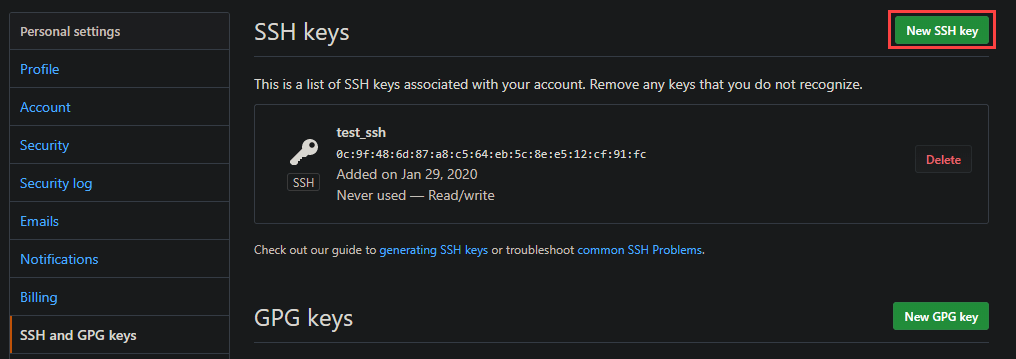
To register the public key on GitHub, open your profile settings and look for “SSH and GPG Keys”, or use this link https://github.com/settings/keys.
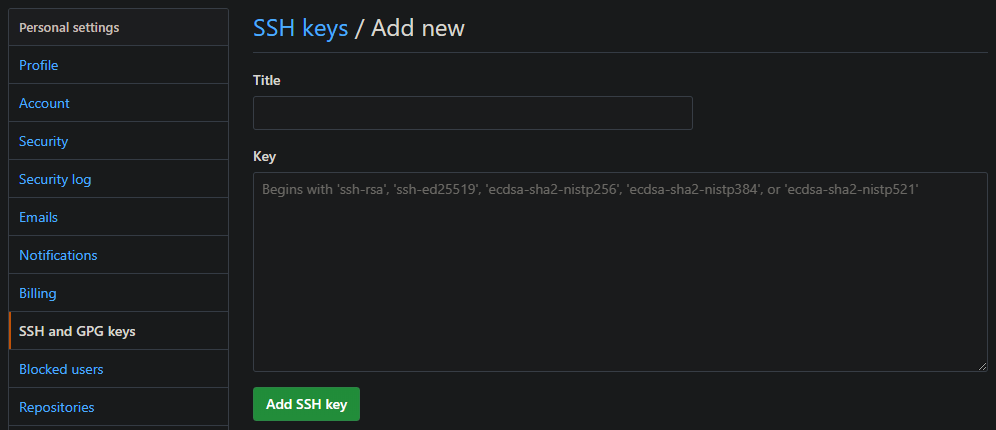
Here we can add a new SSH key.
Copy the content of your Public Key file (id_rsa.public) in the value and assign it a name. When you add a key GitHub will ask for your password even if you are already logged in, you will also receive an email that notifies you that a key has been added.
Test the Connection
To test the connection you just need to run the following command
ssh -T git@github.com

# Which should answer with the following message
$ ssh -T git@github.com
Hi Trovalo! You've successfully authenticated, but GitHub does not provide shell access.

# To check why it works (or doesn't) run
ssh -Tvv git@github.com

#This will output what's happening, below a small section of the whole output:
debug1: Will attempt key: /c/Users/gluisotto/.ssh/id_rsa
debug1: Will attempt key: /c/Users/gluisotto/.ssh/id_dsa
debug1: Will attempt key: /c/Users/gluisotto/.ssh/id_ecdsa
debug1: Will attempt key: /c/Users/gluisotto/.ssh/id_ed25519
debug1: Will attempt key: /c/Users/gluisotto/.ssh/id_xmss
As you might have noticed, the command by default looks for the id_rsa file in the user folder, so by keeping the default settings the setup is already finished.
If you want to change the file path or name you will have to write/edit a configuration file.
Configure Repository Remotes
In order to use the previously SSH authentication, you must interact with the repository using SSH.
When you clone a repository, the proposed way is http, but you can change in to SSH

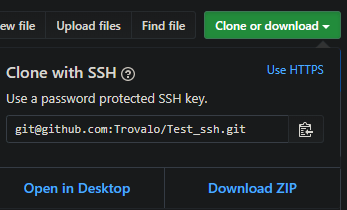
You can check the current repository configuration by navigating to its folder and running
git remote -v

# Sample Output
gluisotto@QDLP03 MINGW64 /c/Projects/git/Test_ssh (master)
$ git remote -v
origin  https://github.com/Trovalo/Test_ssh (fetch)
origin  https://github.com/Trovalo/Test_ssh (push)
When using HTTP, the configured SSH key won’t be used, if you try to push to the repo, Git will ask you to authenticate to GitHub.
To change the remote from HTTP to SSH you can run the following command (git docs here)
git remote set-url origin git@github.com:Trovalo/Test_ssh.git

# Sample Output
gluisotto@QDLP03 MINGW64 /c/Projects/git/Test_ssh (master)
$ git remote set-url origin git@github.com:Trovalo/Test_ssh.git

gluisotto@QDLP03 MINGW64 /c/Projects/git/Test_ssh (master)
$ git remote -v
origin  git@github.com:Trovalo/Test_ssh.git (fetch)
origin  git@github.com:Trovalo/Test_ssh.git (push)
Now Git won’t ask you to authenticate to GitHub, it will do that automatically through the SSH key.
Additional SSH Configurations
Behind the SSH configuration there is a whole world of configuration files, I will list only few settings that I found useful for me while exploring this world.
As you have seen previously, when Git connects using SSH, it will look for some default folders and file.
Those files can be seen in the result of the command
ssh -Tvv git@github.com

# In the output you can see:
debug1: Reading configuration data /etc/ssh/ssh_config
{...}
debug1: Will attempt key: /c/Users/gluisotto/.ssh/id_rsa
debug1: Will attempt key: /c/Users/gluisotto/.ssh/id_dsa
debug1: Will attempt key: /c/Users/gluisotto/.ssh/id_ecdsa
debug1: Will attempt key: /c/Users/gluisotto/.ssh/id_ed25519
debug1: Will attempt key: /c/Users/gluisotto/.ssh/id_xmss
{...}
debug1: Trying private key: /c/Users/gluisotto/.ssh/id_rsa
{...}
This is a linux command of OpenSSH (more info in the official page), and as you can see also the path of some folder il linux like i.e. the “etc” folder.
The OpenSSH related folder are in the Git install directory, which by default on windows is: “C:\Program Files\Git\etc\ssh”, here you will find the configuration files.
The two main configuration files are (create them if missing):
– User Configuration – C:\Users\{user}\.ssh\config
– Global Configuration – C:\Program Files\Git\etc\ssh\ssh_config
Different Key File Path/Name
In order to load keys with non default names, you can add some lines to a config file
# this applies to all  the hosts
Host *
  AddKeysToAgent yes
  IdentityFile ~/.ssh/id_rsa
  IdentityFile ~/.ssh/id_rsa_test
You can configure this in two different files (create them if they don’t exists)
– User Configuration – C:\Users\gluisotto\.ssh\config
– Global Configuration – C:\Program Files\Git\etc\ssh\ssh_config
I’ve added those settings to the global file, now when you test the connection the ssh agent will look for the two specified files “id_rsa” and “id_rsa_test”
ssh -Tvv git@github.com

# In the output you can see:
debug1: Reading configuration data /etc/ssh/ssh_config
debug1: /etc/ssh/ssh_config line 49: Applying options for *
{...}
debug1: identity file /c/Users/gluisotto/.ssh/id_rsa type -1
debug1: identity file /c/Users/gluisotto/.ssh/id_rsa-cert type -1
debug1: identity file /c/Users/gluisotto/.ssh/id_rsa_test type -1
debug1: identity file /c/Users/gluisotto/.ssh/id_rsa_test-cert type -1
{...}
Host Specific Keys
If you have multiple SSH connection with different keys, you can specify which key must be used for each host.
To specify this you must add something like the following to one of the configuration files (Global or user file)
Host github.com
  IdentityFile ~/.ssh/id_rsa_github
  {other options}

Host AnotherHost
  IdentityFile ~/.ssh/id_rsa_AnotherHost
Auto-Launching the ssh-agent
The ssh-agent should start when the Git-Desktop is started, if it doesn’t start you should receive an error message while trying to log-in. This is because the SSH keys have not been loaded.
you can manually load an SSH key with the command
ssh-add {path_to_key_file}If the ssh agent is not in execution when you execute Git, there is a workaround to start it, provided directly by GitHub.
In practice when Git is started it also launches a script, that checks if the ssh-agent is running, and if it isn’t then it starts it.
This is the link to the Github documentation:
https://help.github.com/en/github/authenticating-to-github/working-with-ssh-key-passphrases#auto-launching-ssh-agent-on-git-for-windows
Security Considerations
I’m not an expert of security, so I will tell you only why you should keep your keys safe and then link some useful and way more comprehensive resources about SSH keys management.
If someone has access to your pc, they will also have access to your keys, and therefore are able to log-in in this case in GitHub with your user.
In case the key file is compromised, delete the public key from GitHub, this will make it useless, but you will have to create and register the new key, and also configure all the client in which it was used.
Here are some useful resources about SSH key management:
- GitHub – https://help.github.com/en/github/authenticating-to-github/connecting-to-github-with-ssh
- MicrosoftDocs – https://docs.microsoft.com/en-us/windows-server/administration/openssh/openssh_keymanagement
- National Institute of Standards and Technology (NIST) – https://nvlpubs.nist.gov/nistpubs/ir/2015/NIST.IR.7966.pdf
 The SQL Dump