
If you ever had the need to create a Power BI report that asks for some input before loading and takes different choices based on the provided input, then look no further.
In this article you will see and learn how to:
- Configure Parameters
- Edit/Write M Code (Power Query) to take different actions based on the parameters
- Create a Power BI template
The final result will be a report that loads data from two different data sources, one mandatory and one optional, both configurable when the report is opened.
In my sample I will use a SQL Server database as datasource but the same can be applied to any datasource.
Prerequisites
- Power BI Desktop (download)
- Knowledge of Power BI report development – basic concepts will be given as granted
- Basic understanding of the M language (Power Query) – you don’t need to know how to write it manually, just how to generate and read it.
Configure Parameters
Start Power BI Desktop, create a new file and open Power Query (Edit Queries).
In the top bar select: Home -> Manage Parameters.
The following window will allow us to create and edit our parameters.
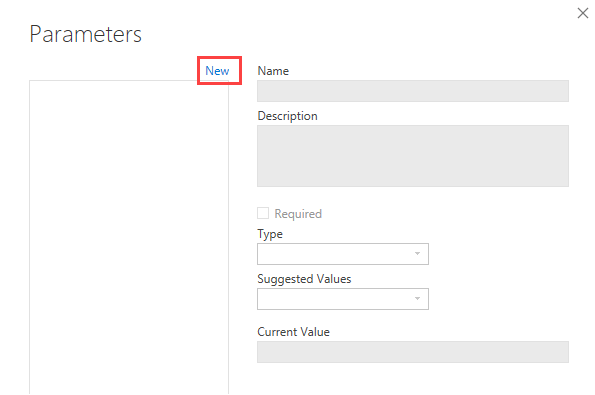
For each parameter you will be able to specify the following properties:
- Name
- Description – It will be visible as a tooltip (if not empty)
- Required – A checkbox that specify if a parameter is mandatory or not (required and optional parameters have no graphic difference in the input form)
- Type – The data type of the parameter
- Suggested Value
- Any – Free input value
- List of Values – A manually defined list of possible values
- Query – use a previously defined “list query” to show the possible values
- Current Value – specify the current value, if the parameter is required you must provide one now
In my example I will use a SQL Server database as datasource, so my parameters will refer to the needed data to open a connection.
I suggest you to populate all the parameters since you will need them to choose
| Name | Description | Required | Type | Suggested Value | Current Value |
| Server\Instance 1 | Required | True | Text | Any value | SQLCSRV04\SQL2017 |
| Database 1 | Required | True | Text | Any value | SqlWorkload_Sample1 |
| Server\Instance 2 | Optional | False | Text | Any value | SQLCSRV04\SQL2017 |
| Database 2 | Optional | False | Text | Any value | SqlWorkload_Sample2 |
Note: since there is no graphical difference between Required and optional I usually specify that in the description
Edit/Write M Code
Using Parameters
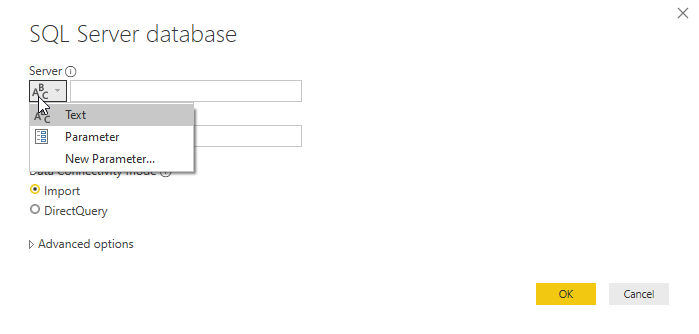
We can now import some data, since some parameters already exists the menu allows us to choose a parameter as value
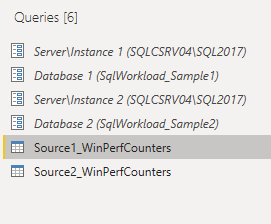
In this databases i have two different sets of data about windows performance counters (with the same structure), so I’ve created two queries
- Source1_WinPerfCounters – with connection based on the “* 1” parameters
- Source2_WinPerfCounters – with connection based on the “* 2” parameters
By using the advanced editor (Home -> Advanced Editor) we can see the whole query code, which for me is:
let
    Source = Sql.Database(#"Server\Instance 1", #"Database  1"),
    baseline_PowerBI_WinPerfCounters = Source{[Schema="baseline",Item="PowerBI_WinPerfCounters"]}[Data]
in
    baseline_PowerBI_WinPerfCounters
As you can see parameters are referenced using #”<ParamName>”.
The auto-generated code used them in the “Source” step, but you can use them wherever you want by editing the code manually.
Create two additional parameters
| Name | Description | Required | Type | Suggested Value | Current Value |
| Source 1 Label | Optional – if empty “Source 1” | False | Text | Any value | Production |
| Source 2 Label | Optional – if empty “Source 2” | False | Text | Any value |
Now create a new column “Source” on both tables (Add-Column -> Custom Column).
In the formula bar you can type “#”, it will suggest you the parameters
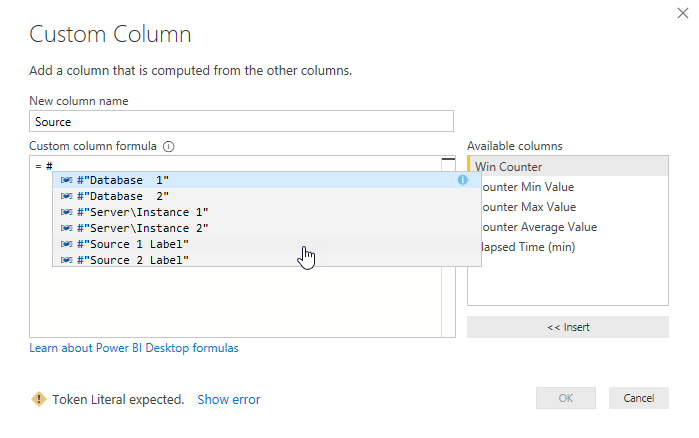
Since we want a default value if the parameter has no value this is the formula
-- Source 1 table
if#"Source 1 Label" <> null then #"Source 1 Label" else "Source 1"
-- Source 2 table
if#"Source 2 Label" <> null then #"Source 2 Label" else "Source 2"
The final result in the advanced editor will be like this:
let
    Source = Sql.Database(#"Server\Instance 1", #"Database  1"),
    baseline_PowerBI_WinPerfCounters = Source{[Schema="baseline",Item="PowerBI_WinPerfCounters"]}[Data],
    #"Added Custom" = Table.AddColumn(baseline_PowerBI_WinPerfCounters, "Source", each if #"Source 1 Label" <> null then #"Source 1 Label" else "Source 1")
in
    #"Added Custom"
Conditional Data Load
If we try to run the current code without specifying the second data source we will get an error, in fact the query will run with null parameters and cause an exception.
We will now add a check on the parameter value and load the table only if a value has been provided.
To avoid breaking any front-end dependency (like measures, calculated fields, etc) or back-end (queries that reference this table, like an union or join), we will load it if the parameter exists, otherwise we will load an empty table.
This empty table can be defined in M, but since I have a table with the same structure that is mandatory i will just reference it an load 0 rows, thus copying oly his structure.
No edits are made to the first source just because it is mandatory.
The current “Source2_WinPerfCounters” code
let
    Source = Sql.Database(#"Server\Instance 2", #"Database  2"),
    replay_PowerBI_WinPerfCounters = Source{[Schema="replay",Item="PowerBI_WinPerfCounters"]}[Data],
    #"Added Custom" = Table.AddColumn(replay_PowerBI_WinPerfCounters, "Source", each if#"Source 2 Label" <> null then #"Source 2 Label" else "Source 2")
in
    #"Added Custom"
The new “Source2_WinPerfCounters” code
let

    //Queries
    #"ParamProvided" =
    let
        Source = Sql.Database(#"Server\Instance 2", #"Database  2"),
        replay_PowerBI_WinPerfCounters = Source{[Schema="replay",Item="PowerBI_WinPerfCounters"]}[Data],
        #"Added Custom" = Table.AddColumn(replay_PowerBI_WinPerfCounters, "Source", each if#"Source 2 Label" <> null then #"Source 2 Label" else "Source 2")
    in
        #"Added Custom",

    #"ParamMissing" =
    let
        //Keep 0 rows from other (mandatory) table | copy structure of table without data
        EmptyTable = Table.FirstN(#"Source1_WinPerfCounters",0)
    in
        EmptyTable,


    //Choose execution path
    #"Result" = if #"Server\Instance 2" = null
        then #"ParamMissing"
        else #"ParamProvided"
in
    #"Result"
This code defines two variables, “ParamProvided” and “ParamMissing”, each one contains a whole query, the “Result” step then decides which one will be used to load the data.
now, if you change the “Server\Instance 2” parameter (which is the one used in the if) you can already preview the result


Last Adjustments
Just to have a better model I will now union (append) the two tables into one, which will always work since even if the second table has not been provided, it exists as an empty table.
- Create “WinPerfCounters” – result of the union (append) of “Source1_WinPerfCounters” and “Source2_WinPerfCounters”
- Disable “Enable Load” in the two source table
To put some order in the Power Query structure I will also create some groups, to categorize parameters and tables
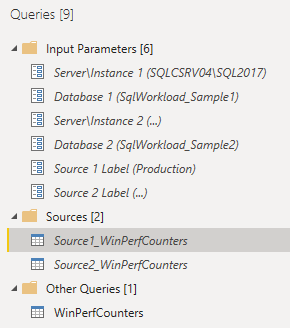
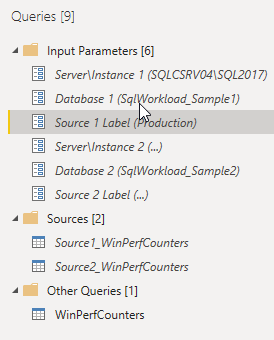
Another important thing to remember is the order of the parameters, the report itself won’t show us the input parameter form, but the template will.
In this form, the parameters will have the same order as in Power Query, so you may want to rearrange some of them to show them in a meaningful order. (just drag and drop them to change the order).
Below the final result:
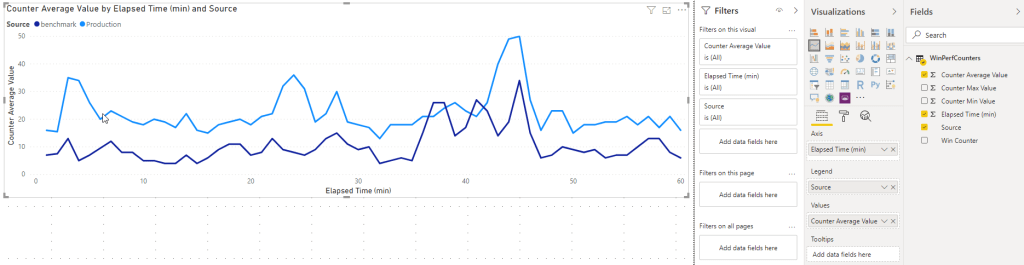
As the last step we will create a basic front-end, in order to have something to show.
In my case a simple line-chart will do.
Create a Power BI Template
So far we have just created a report that uses parameters. It won’t show us a form to input the values and if we want to do so we will need to open Power Query.
What we need is a Power BI template, which contains the back-end and front-end definition, but once opened will ask us the input parameters.
To create a template simply save the current report file in template (.pbit) format.
File -> Save As -> Type “power bi template files”
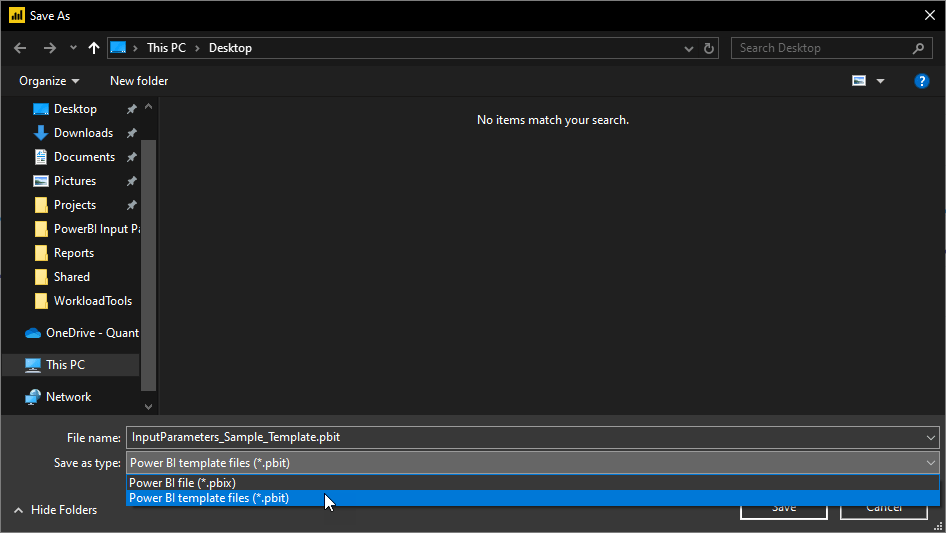
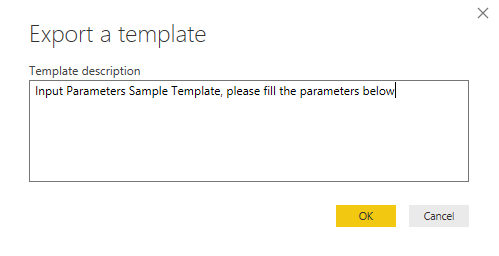
While saving it will also ask you for a description, it will be shown on the top of the parameters form. (be aware that this description can’t use new line and other chars)
Now that you have the template file, open it with Power BI Desktop, the first thing you will see is the parameter form.
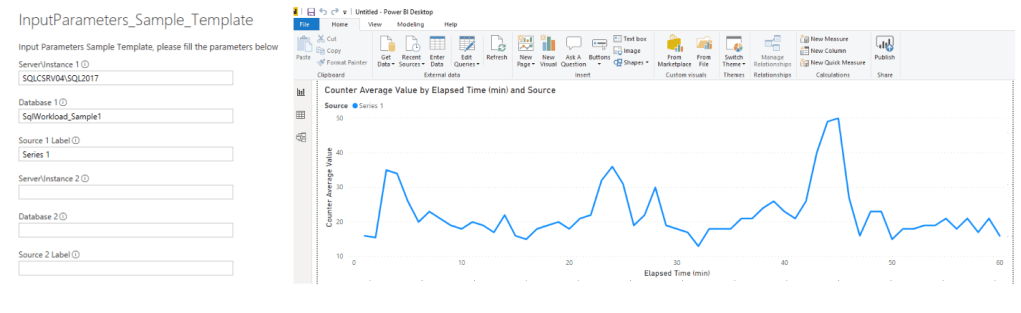
After the data load you will have an unsaved Power BI report, which can be saved for further usage. if you want a new file simply start the template again
I hope you found this post useful, below the links to the repository with the created files:
Github
 The SQL Dump